

Enemy color
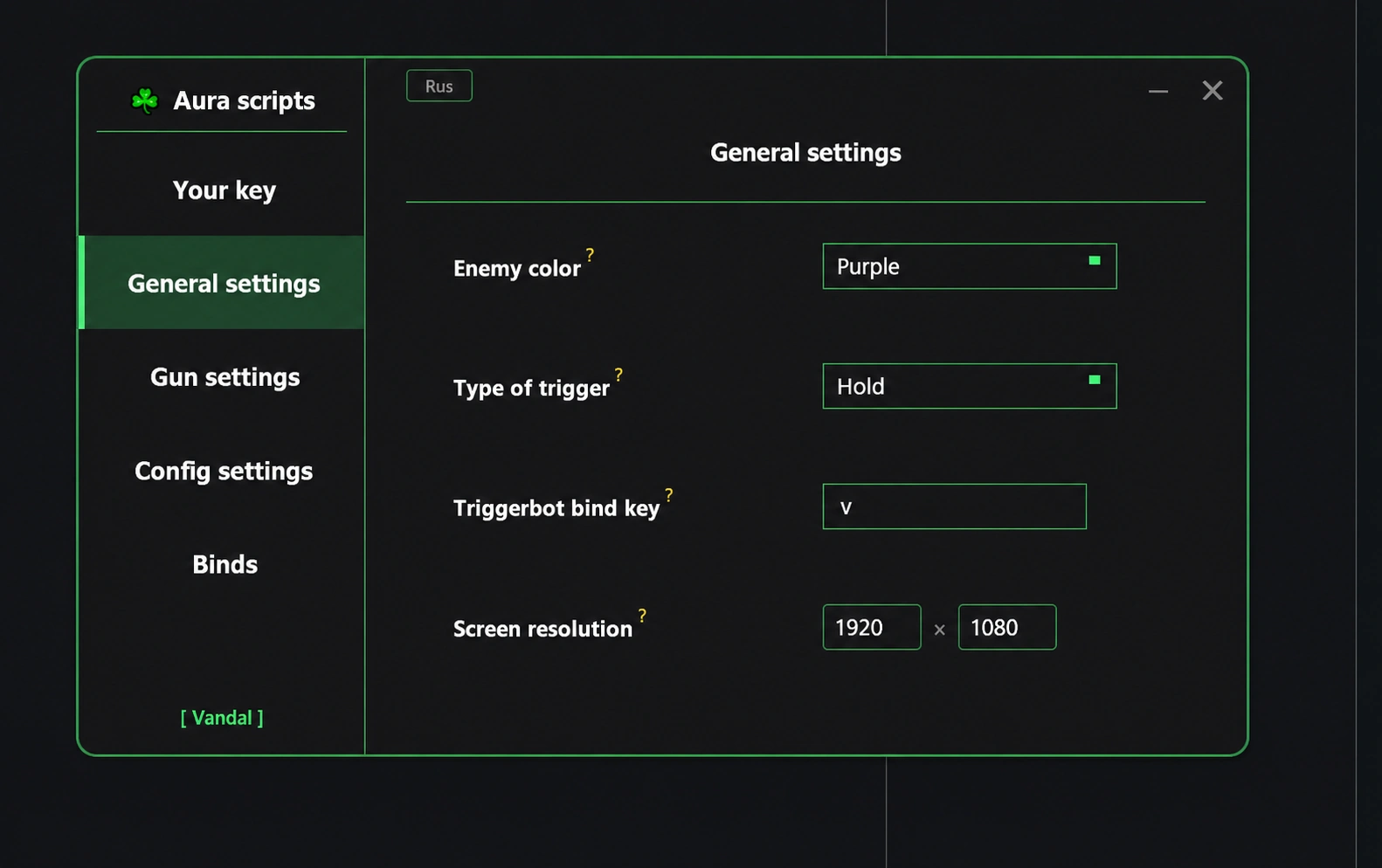
Choose the same color as the enemy highlight color in Valorant.
Learn how to launch Color Triggerbot for Valorant, activate your key, and configure the fire key, weapon profiles and crosshair.
This guide covers the software edition of Color Triggerbot for Valorant. It does not require a Makcu board.
Extract all files into a separate folder. Do not run the application from inside the archive.
Run the application from the extracted folder as administrator: right-click it and choose Run as administrator. Keep its accompanying files in the same folder.
Enter the key supplied with your purchase and press Enter. If the status does not update, restart the application.
Choose the same color as the enemy highlight color in Valorant.
Hold works while you hold the key. Toggle turns it on with one press and off with the next.
Choose the key that activates the triggerbot. It follows the Hold or Toggle mode selected above.
Check the resolution in Valorant and enter the same width and height here. Use the game resolution, not the Windows desktop resolution.
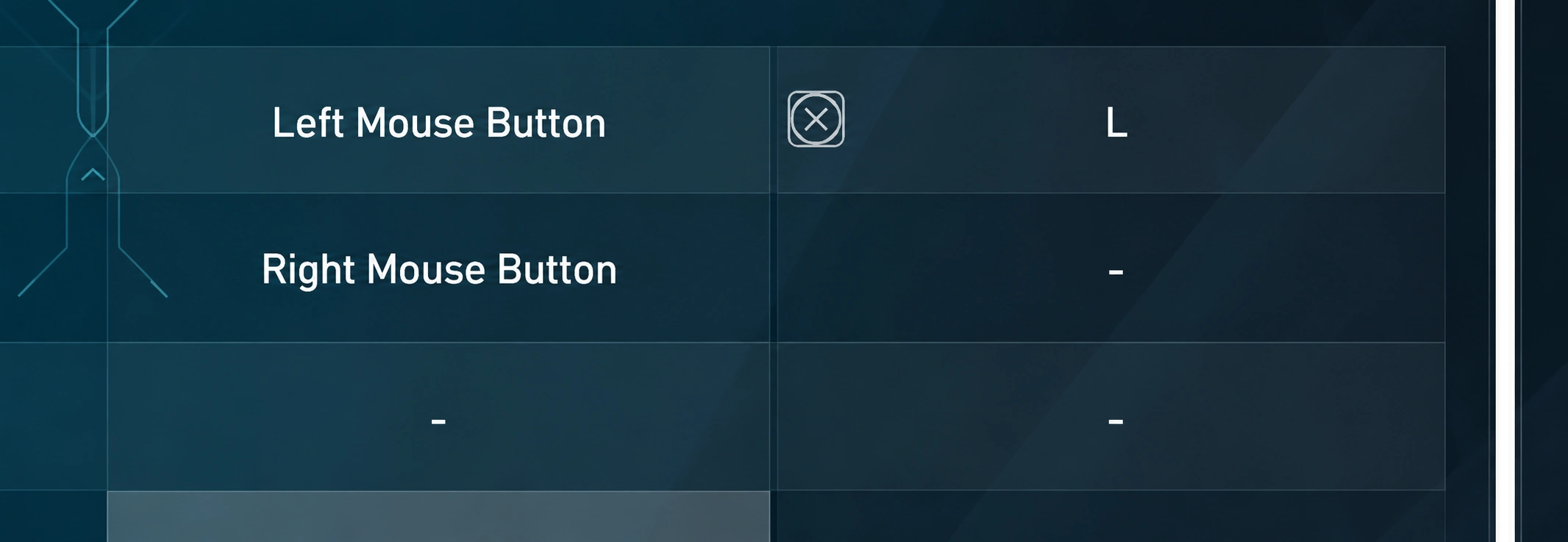
In Valorant controls, assign an unused key with the English keyboard layout as the secondary fire key. The screenshot uses L. Keep the primary left mouse button binding.
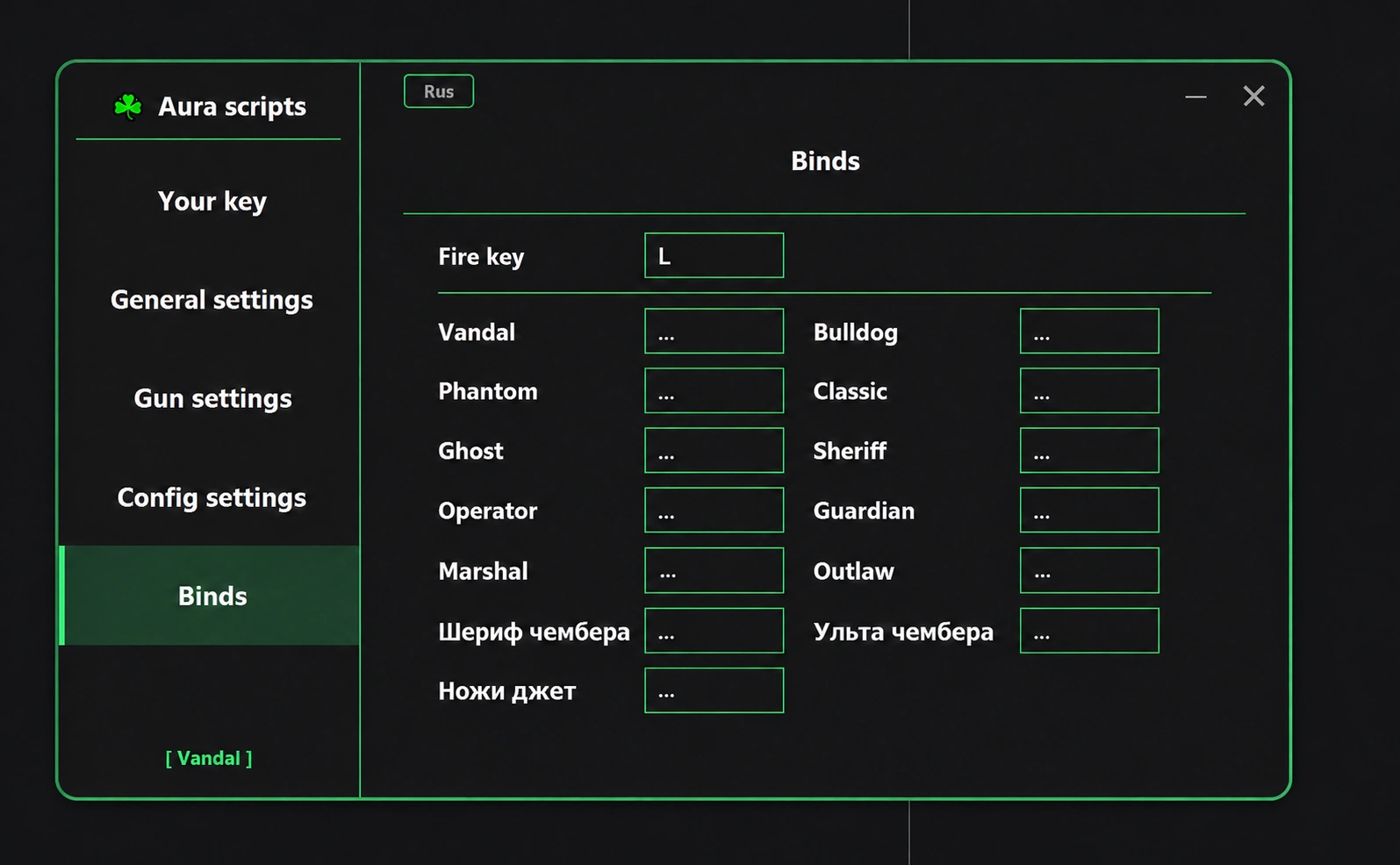
Open Binds and enter the same key in Fire key. If you selected L in the game, this field must also be L.
Use Binds to assign a profile selection key to each weapon. Chamber abilities and Jett knives need separate bindings: AI does not switch these profiles automatically.
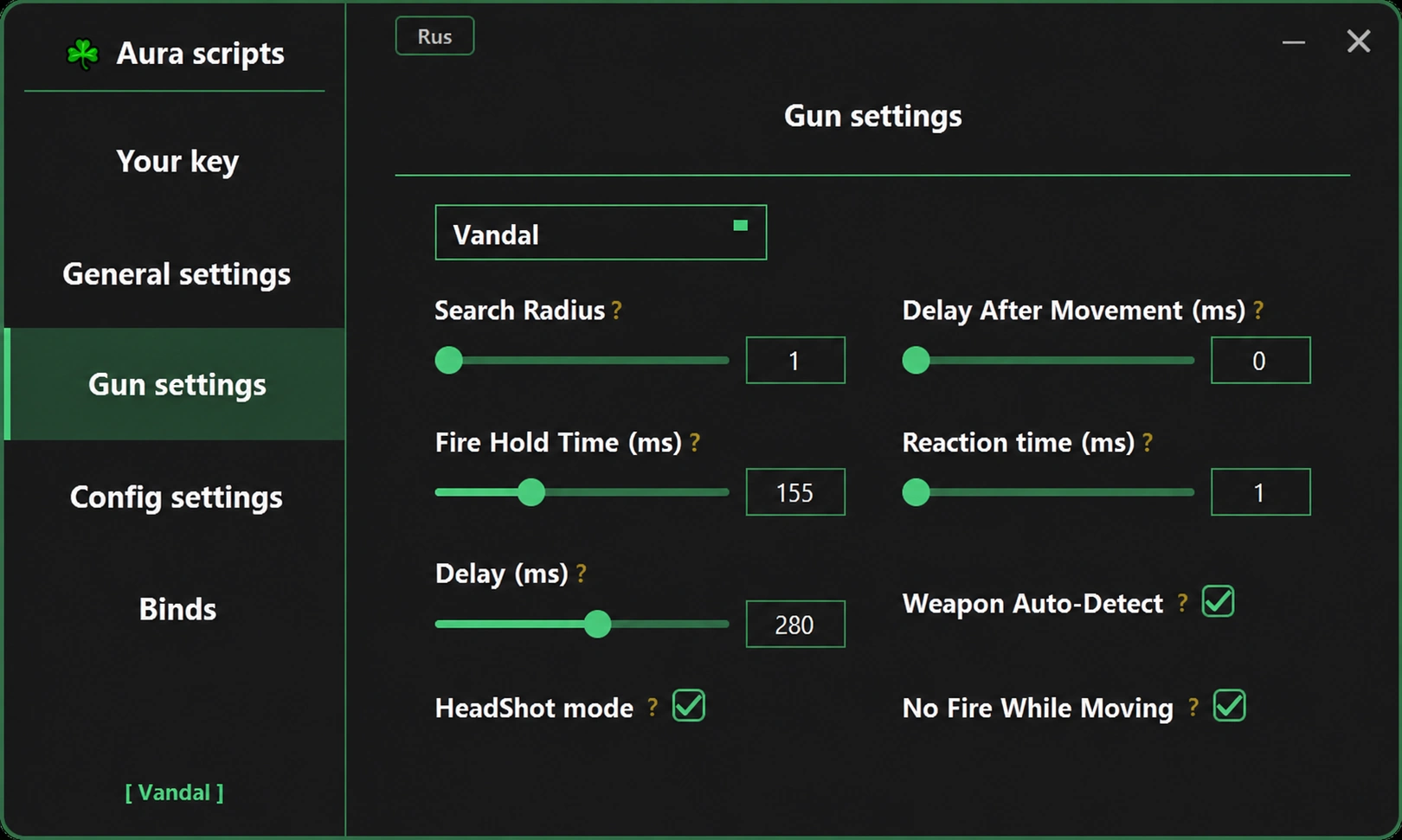
Each weapon has its own profile. Select a weapon first, then adjust its settings.
The radius of the area scanned for the enemy color. A smaller radius reduces false triggers.
A value of 1 is recommended at 144 FPS or higher with headshot mode enabled. Use 2–3 for less powerful PCs or a large crosshair.
Controls how long the fire command is held. This affects the number of shots fired per trigger.
For the Vandal, 155 ms gives approximately 2 shots and 85 ms gives a single shot. Single-shot taps are easier to spot when reviewing a demo recording.
The time between shots. This is separate from reaction time and hold duration.
Adjust the interval separately for each weapon, taking its recoil into account.
Improves headshot accuracy at close and medium range by scanning for head patterns.
Recommended for all weapons except sniper rifles.
The delay between detecting an enemy and sending the fire command.
The minimum setting is 1 ms, or 0.001 seconds. Leaving it unchanged is recommended.
When enabled, the triggerbot does not fire while you are moving.
Moving while crouched is the exception: firing remains enabled in this case.
Enable Weapon Auto-Detect to switch weapon profiles automatically. The active profile appears in the lower-left corner of the menu.
The enemy highlight color must match the option selected in the application. Use a different crosshair color so it does not match the enemy outline.
Restart the application. If the status does not change, contact support with your order number.
Check activation, the Fire key and secondary fire binding, the enemy color and screen resolution.
The application reacts to color. Similar shades in abilities and other parts of the image can trigger it.
Hover over the question mark beside the option in the application menu.
If you need help, include your product, order number and the step where the issue occurred. A screenshot and the error message help us understand the problem.