

Rust Makcu Macros.
Connection and setup
Connect Makcu to one PC, test the board and configure controls, weapons and sights.
Guide contents
Connect Makcu
Gather everything you need to connect the board.
- Two USB-A to USB-A cables
- Makcu board
- Mouse
- Main PC
Plug one cable into USB 1 on the left and the other into USB 2 in the middle. Connect the other ends to two USB ports on the same PC. Plug the mouse into USB 3 on the right.
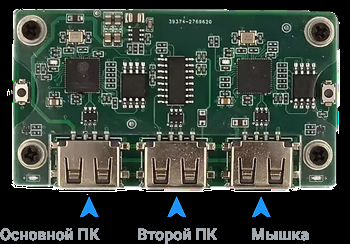
Launch the app, enter the key from your order and open “Устройство” (Device). Keep the game closed for now. The app detects the board’s COM port automatically, so click “Подключить” (Connect).
The top right shows a green “Makcu” label with your COM port number. Click “Тест move” (Move test). If the pointer moves, launch Rust and continue with the settings.
Controls
Open the Controls tab and assign a key or mouse button to toggle the macro. It works like a safety switch: press once to enable it and again to disable it.
Spread is lower while crouching. Set “Присед” (Crouch) to the key you hold to crouch in Rust. While you hold it, the macro reduces the recoil correction strength.
In the Auto Fire block, assign a key for semi-automatic weapons. While you hold it, the macro clicks and corrects recoil. Leave Click Humanization enabled for auto fire.
To activate the macro only while aiming, enable “Макрос при нажатии/зажатии ПКМ” (Macro on right-click press or hold). Choose whether to press or hold the right mouse button.
Path Humanization is on the right side of the menu. It makes mouse movements less repetitive and may slightly reduce precision. I recommend enabling it, especially if the game or server anti-cheat analyzes mouse movement. Detection and bans remain possible.
Arsenal
Weapon, sight and preset bind
Select a weapon in the Arsenal tab. Its settings open on the right.
Select the sight you want to configure.
Once your sights are configured, assign keys to the presets. Pressing a key immediately activates the selected weapon and sight. To clear a bind, click its field and press Enter.
Sensitivity and strength
Before adjusting strength, copy your Rust settings. Sens is mouse sensitivity, ADS is aim-down-sights sensitivity, and FOV is field of view.
Join a bot server where you can stand still. First check that the macro activates even without a weapon equipped. Then select the same sight in the app and in the game, stand still, aim and hold the left mouse button. Increase Strength if recoil pulls the crosshair up, or lower it if the macro pulls it too far down.
Shooting while moving
After tuning stationary shots, adjust Strength While Moving. Spread increases while moving, so start above the normal strength. Aim, move in one direction and hold the left mouse button. Adjust until the results while moving and standing still are as close as possible.
Repeat the tuning for every weapon and sight you use.
Auto fire interval
For semi-automatic weapons and pistols, set the delay between clicks in milliseconds. At 50 ms, for example, the macro clicks every 50 ms and corrects recoil while you hold the auto fire key. You can leave the left mouse button released.
If you want me to configure every weapon preset for your settings, ask support whether a separate FunPay listing is available.
Support channel
Follow development and ask questions in the Aura Scripts Telegram channel. Open it from the app with the Support button.
If you need help, include your product, order number and the step where the issue occurred. A screenshot and the error message help us understand the problem.